To stop Fireflies from joining your meetings, open Fireflies Settings → Recording & Privacy and switch off Auto-record meetings, or set Auto-join calendar meetings to “Only when I invite fred@fireflies.ai”. To get it out of a call that’s already running, type /ff leave in the meeting chat or remove “Fireflies.ai Notetaker” from the participant list.
Fireflies’ bot is called Fred, and it shows up because a Fireflies account is connected to a calendar with auto-join on. That account might be yours, from a trial you forgot about, or it might belong to someone else on the invite. The fix depends on which, so this guide covers both. The steps come from Fireflies’ own help center, checked 29 October 2026. Fireflies renames menus now and then, so the labels in your account may differ slightly.
Fastest fixes
- Stop your Fireflies everywhere: Settings → Recording & Privacy → turn off Auto-record meetings.
- Skip one meeting: Home → Upcoming tab → toggle that meeting off.
- Fred is in the call now: type
/ff leavein the chat, or remove it from the participant list. - It’s someone else’s Fred: as host, don’t admit it from the waiting room or lobby. It gives up after 10 to 15 minutes.
Why Fireflies keeps joining your meetings
Fireflies watches the calendar connected to an account. When auto-join is on, Fred joins every event with a Zoom, Google Meet or Teams link at the start time, and it records even if the account owner never shows up. The usual causes:
- Auto-join is on in your account. The default is to join all meetings. Signing up once is enough to start it.
- fred@fireflies.ai is on the invite. Anyone can add Fred to an event as a guest, and it will try to join.
- A guest has Fireflies. If anyone invited to the meeting has auto-join on, their Fred turns up in your call. This is also why it can keep appearing after you delete your own account.
- You cancelled instead of deleting. Cancelling a paid plan leaves the account, and its calendar connection, in place.
How to turn off Fireflies auto-join
If it’s your Fireflies account, this stops Fred joining on your behalf:
- Open the Fireflies web app and click Settings in the main menu.
- Go to Recording & Privacy on the Personal tab.
- In the Recording section, switch off Auto-record meetings. It saves automatically.
If you still want Fireflies for some meetings, change who it joins instead of turning it off. From the Home page, open Settings on the right and use the Auto-join calendar meetings dropdown:
- All meetings with web-conf link: the default, every meeting with a video link.
- Only meetings that I own: meetings you host.
- Only meetings with teammates: meetings that include people on your Fireflies team.
- Only when I invite fred@fireflies.ai: nothing, unless you add Fred to the invite yourself.
Recording rules can override this
Fireflies has recording rules that match meetings by keyword, email address or domain. Rules take priority over the auto-join setting, so Fred can still join meetings that match a rule after you turn auto-join off. If it keeps joining one kind of meeting, check your rules. You can also use a rule the other way round: keep auto-join on and skip, say, every meeting with an external client’s domain.
How to remove Fireflies from one scheduled meeting
Two ways, depending on how Fred got there:
- From Fireflies: on the Home page, open the Upcoming tab, find the meeting and toggle Fireflies off. It won’t attend or record that meeting.
- From your calendar: if fred@fireflies.ai was added as a guest, open the event in Google Calendar or Outlook, remove that address from the guest list and save.
How to remove Fireflies from a meeting in progress
Anyone in the call can try these, fastest first:
- Chat command: type
/ff leavein the meeting chat. Fred leaves immediately. - Zoom: open Participants, click More next to Fireflies.ai Notetaker, then Remove.
- Google Meet: open the people list, click the three dots next to Fireflies, then Remove from the call.
- Microsoft Teams: open Participants, click … next to Fireflies, then Remove from meeting.
- Owner’s dashboard: the person whose account sent Fred can click the Stop icon on the live meeting banner on their Fireflies Home page.
Removing Fred ends the transcription, but Fireflies says notes for the part it already recorded are still sent. The exception is the dashboard Stop: if Fred is removed that way within the first 3 minutes, no transcript or notes are created. If something sensitive was said before Fred left, ask the owner to delete that meeting from their account.
Someone else’s Fireflies keeps joining your calls
You can’t change another person’s Fireflies settings, but as host you control who gets in. Fred waits to be admitted and doesn’t record while it waits. If no one lets it in, it leaves after 10 minutes on Google Meet and 15 minutes elsewhere.
- Zoom: turn on the waiting room for guests and don’t admit “Fireflies.ai Notetaker”. Zoom also lets admins require sign-in, block email domains and block Meeting SDK apps.
- Google Meet: Fred may appear under With potential risks in the people panel; just don’t admit it. Setting the meeting to Trusted or Restricted access denies bots that ask to join automatically.
- Microsoft Teams: Teams holds detected bots in the lobby by default. Set Who can bypass the lobby to people in your organization and don’t admit it.
If you can tell who brought it, for example because fred@fireflies.ai is on their copy of the invite or they’re the only Fireflies user on the team, it’s often quicker to ask them to turn off auto-join. The platform controls in more detail, including admin policies, are in our guide to stopping Read AI, Otter and other meeting bots.
How to remove Fireflies from Zoom
If you connected Fireflies to Zoom through the Zoom App Marketplace, remove the app there too: sign in at marketplace.zoom.us, open Manage → Added Apps, find Fireflies and click Remove. Zoom admins find account-wide apps under Manage → Apps on Account. I found these steps in university IT guides rather than an official Fireflies page, so labels may differ.
Removing the Zoom app on its own doesn’t stop Fred. It joins through your calendar, so also turn off auto-join as above, or delete the account.
How to delete your Fireflies account
According to Fireflies, deleting the account is the only way to completely remove its access to your calendar. To do it:
- In the Fireflies web app, click Settings.
- Select Account from the menu at the bottom left.
- Scroll to Delete Account and click Delete my account.
- Optionally pick a reason, click Continue, then confirm with Delete Account.
The account is deactivated straight away. Fireflies keeps the data for 30 days in case you change your mind, then erases it for good. Download any transcripts you want to keep first. Once it’s gone, you can also check your Google or Microsoft account’s list of connected third-party apps and remove Fireflies if it’s still there.
If Fred still turns up after that, it’s coming from someone else’s account. See the host controls above.
Meeting notes without a bot in the call
Plenty of people who remove Fred still want notes. A bot was simply the easiest way for a cloud service to get your meeting audio. Fireflies itself now has a desktop app for Mac and Windows that records system audio without sending a bot, though the audio is still transcribed in Fireflies’ cloud.
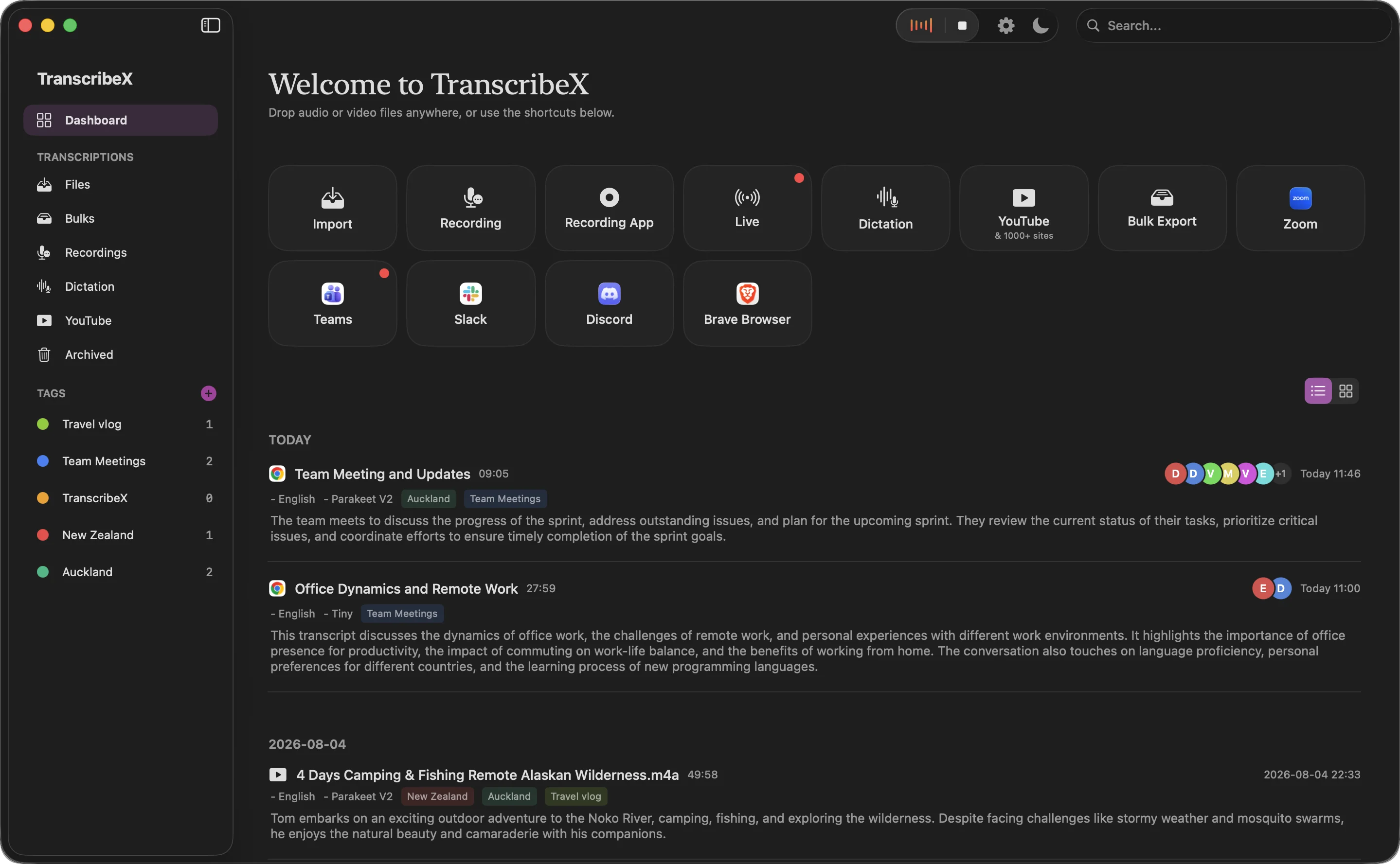
I build TranscribeX, which takes the same approach but keeps everything on your Mac. It detects Zoom, Teams and Meet calls, records them without a bot and transcribes them locally, so the recording never leaves your computer. Fireflies is the better tool if you need CRM integrations, team-wide search across meetings, or notes from meetings you don’t attend; a local app can only record calls on your own machine. There’s a full comparison on our Fireflies alternative page.
One thing to keep in mind: with no bot in the call, nobody sees that the meeting is being recorded. The bot was, in its way, a disclosure.
Stopping Fireflies: FAQ
How do I stop Fireflies from joining my meetings?
In Fireflies, go to Settings, then Recording & Privacy, and switch off Auto-record meetings. To keep Fireflies for some meetings, set Auto-join calendar meetings to “Only when I invite fred@fireflies.ai” and add Fred only where you want it. Also check your recording rules, which override auto-join.
How do I remove Fireflies from a Zoom meeting?
Type /ff leave in the Zoom chat, or open Participants, click More next to Fireflies.ai Notetaker and choose Remove. To stop it coming back, turn off auto-join in Fireflies and remove the Fireflies app under Manage → Added Apps in the Zoom App Marketplace.
Why does Fireflies still join after I deleted my account?
Usually because someone else invited to the meeting has their own Fireflies account with auto-join on. Ask them to turn it off, or as host keep Fred in the waiting room or lobby. Also make sure you deleted the account rather than only cancelling the subscription.
Does removing Fireflies from a meeting delete the recording?
No. Removing Fred ends the transcription, but notes for the part already recorded are still sent to the account owner. Only the owner can delete that meeting from Fireflies.
Can I use Fireflies without the bot?
Yes. Fireflies’ desktop app for Mac and Windows and its Chrome extension record without a bot, though the audio is still transcribed in Fireflies’ cloud. Local apps such as TranscribeX record without a bot and transcribe on your own computer.