If Otter, Read AI or Fireflies keeps appearing in your meetings, it’s almost always because of a calendar connection. Someone, possibly you months ago, signed up and let the note taker read their calendar. From then on, its bot joins every meeting with a video link at the scheduled time.
How you stop it depends on whose bot it is. If it’s yours, you turn off auto-join. If it belongs to someone else, you block it in Zoom, Google Meet or Teams, or remove it from the call. Both are below, with steps from the vendors’ and platforms’ own help pages where I could find them, checked October 2026.
Fastest fixes
- Your own Otter: Account Settings → Meetings → turn off auto-join under the OtterPilot section.
- Your own Read AI: turn off “Add Read?” for the meeting in your Read calendar, or change your auto-join preferences.
- Read AI in a call right now: type “Opt Out” in the chat. It leaves and saves nothing.
- Someone else’s bot: as host, use a waiting room or lobby and don’t admit it. Teams now holds detected bots in the lobby by default.
Why AI bots join meetings you didn’t invite them to
Bot-based note takers work through calendar sync. When a user connects Google Calendar or Outlook, the service watches for events that contain a Zoom, Google Meet or Teams link and sends its bot to each one as a participant.
That causes three common surprises:
- You signed up once and forgot. The bot keeps joining your meetings long after you stopped using the app.
- A guest brought it. If anyone invited to the meeting has auto-join on, their bot can turn up in your call.
- Uninstalling isn’t enough. Removing a Zoom app or browser extension doesn’t revoke the calendar connection, so the bot keeps coming.
How to stop Otter from joining meetings
If it’s your Otter account:
- Sign in to Otter on the web and click your profile.
- Go to Account Settings → Meetings.
- Under the OtterPilot (Notetaker) section, turn off Auto-join all meetings.
- Otter shows how many upcoming meetings it was going to join. Confirm to turn them off.
- Check the calendar on Otter’s home screen to make sure upcoming meetings show it as off.
Otter has renamed this feature a few times, so the labels in your account may differ slightly. These steps come from a university IT guide that quotes Otter’s instructions. If you no longer use Otter at all, also remove its access to your calendar in your Google or Microsoft account settings.
This only stops your Otter. If a colleague’s Otter keeps joining, use the platform controls further down.
How to stop Read AI from joining meetings
If it’s your Read account, Read’s own guide gives two options:
- For one meeting: open your Read calendar, select the meeting, and turn off “Add Read?” a few minutes before it starts. For recurring meetings you can do this per occurrence.
- For all meetings: go to Account Settings → Meeting Recording → Auto-Join Preferences and choose a setting that stops automatic joining.
If it’s not your account, Read says its chat message names the person who added it, so you can ask them directly. Read also says that on Google Meet and Teams, “if even one person says no, Read AI won’t join”. On Zoom, only the host decides whether to admit it.
Removing Read AI during a meeting
Anyone in the call can type a command in the meeting chat:
- “Opt Out”: Read leaves, creates no report and saves nothing.
- “Read Stop”: Read leaves and creates a report of what it captured so far.
The host can also remove it like any other participant.
How to block AI bots in Zoom
Zoom has a support article on blocking bots and lists these controls for hosts and admins:
- Waiting room for guests, so nothing gets in without the host admitting it.
- Require sign-in to join, optionally only for people joining from the web app.
- Block specific email domains (Pro, Business, Education or Enterprise; only works when sign-in is required).
- A block or allow list for Meeting SDK apps, which is how many note-taker bots connect.
- Built-in web app bot protection, which is on for every account.
Users in Zoom’s community report that bots joining through a participant’s own signed-in account can still get through, so the waiting room is the most dependable control.
How to remove Read AI and other bots from Google Meet
Google Meet’s access settings do most of the work:
- Set the meeting’s access type to Trusted or Restricted. Google says that under these settings, anonymous users and third-party bots that “ask to join” are automatically denied without the host doing anything.
- In host controls, turn off “Anyone with the meeting link can ask to join” so outside knocks stop altogether. This works with Trusted and Restricted access for Workspace accounts.
- If a bot is already in, remove it from the people list.
Google has no dedicated “block Otter” switch. A bot added by a signed-in, invited guest may still get in, so check the participant list at the start of sensitive calls.
How to disable Read AI and other bots in Microsoft Teams
Teams has the strongest default. Its meeting policy setting “Manage external bots and their access to meetings” is set by default to require approval when a bot is detected: detected bots are marked and held in the lobby until someone explicitly admits them, whatever the normal lobby settings are.
- Admins: keep that policy at its default, and limit who can admit people from the lobby to organizers and co-organizers.
- Organizers: don’t admit participants marked as bots. Microsoft notes detection isn’t perfect, so look at unfamiliar names in the lobby.
- For Read AI specifically: declining Read when it asks is enough on Teams, according to Read.
Want meeting notes without a bot?
A lot of people who block bots still want notes. Bots exist because they were the easiest way for a cloud service to get meeting audio. You can also capture the audio on your own computer, so nothing joins the call.
Several note takers work that way now, including Granola and the desktop apps from Otter and Fireflies, though those still transcribe the audio in the cloud. Local apps such as TranscribeX and MacWhisper also transcribe on the Mac, so the recording never leaves it. Our comparison of AI note takers for Mac sorts them by exactly this.
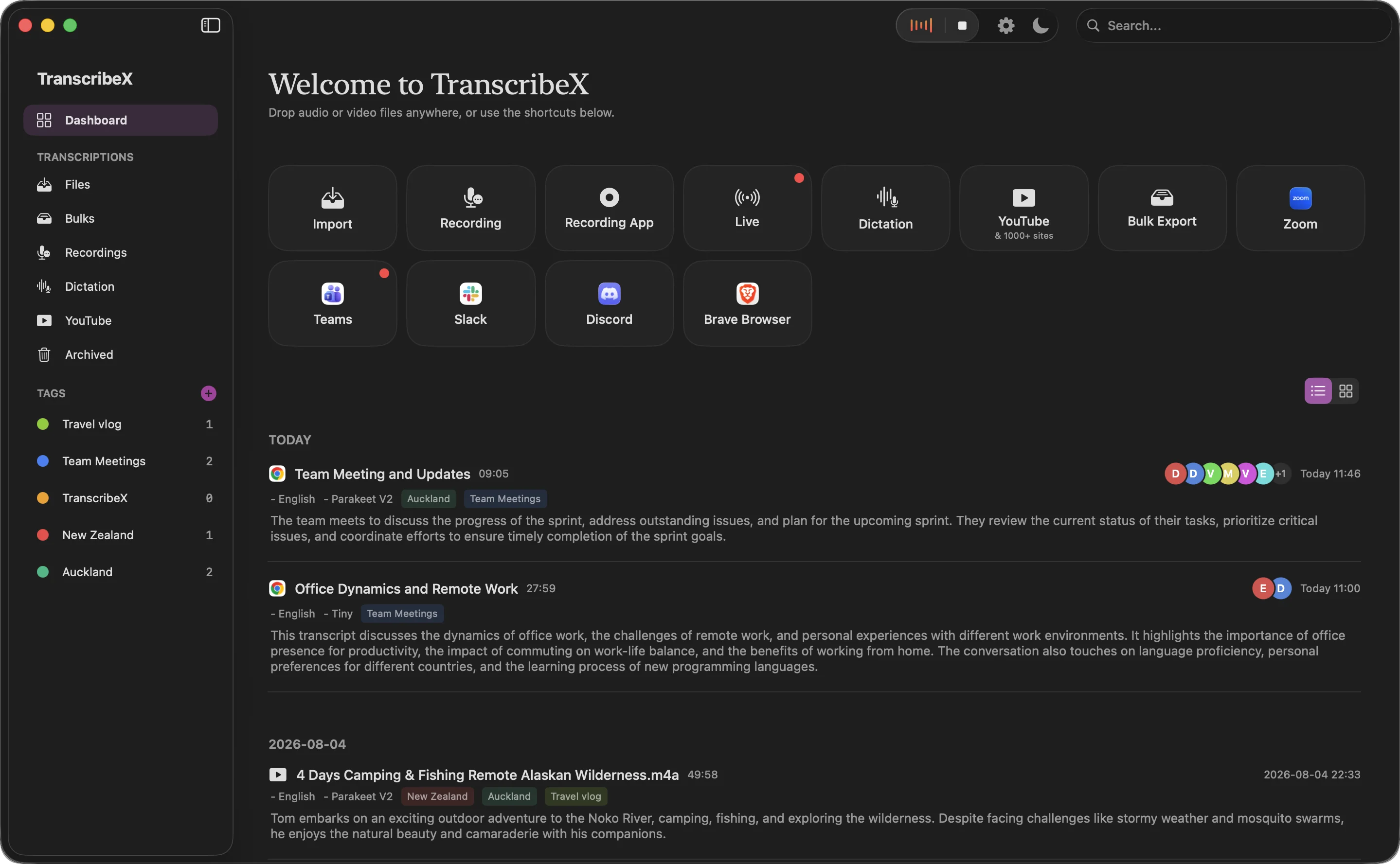
There is a catch worth saying out loud. Bot blocking can’t see a recorder running on someone’s laptop, and neither can the other people in the call. The visible bot was, in its clumsy way, a disclosure.
Stopping AI meeting bots: FAQ
How do I stop Otter.ai from joining my meetings?
If it’s your Otter account, go to Account Settings, then Meetings, and turn off auto-join under the OtterPilot section. If another person’s Otter is joining, use a waiting room or lobby as host and don’t admit it, or remove it from the participant list.
How do I remove Read AI from Google Meet?
Remove it from the people list during the call, or type “Opt Out” in the chat. To prevent it, set the meeting to Trusted or Restricted access, which automatically denies bots that ask to join, and decline Read when it requests access.
How do I disable Read AI in Microsoft Teams?
Teams holds detected bots in the lobby by default, so don’t admit it. If it’s your own Read account, turn off auto-join in Read’s Account Settings under Meeting Recording.
Why does Otter join meetings I didn’t invite it to?
Because someone invited to the meeting connected Otter to their calendar with auto-join on. The bot joins every calendar event with a meeting link. Ask them to turn off auto-join, or block it as the host.