Microsoft Teams has live transcription, recording and AI recaps built in. Whether you can use them depends on things you may not control: the license on your account, the meeting policy your admin set, and whether you belong to the organizer’s organization. Guests and people from other companies are often limited to watching. This page explains how Teams meeting transcription works natively and how to transcribe a Teams meeting on a Mac with TranscribeX.
The short version
- Teams transcription can be started by organizers, co-organizers and people in the same organization, if the admin has enabled it. Guests, anonymous users and people from other organizations can’t start it.
- Intelligent recap, the Teams AI meeting notes, needs a Teams Premium or Microsoft Copilot license on top of Microsoft 365.
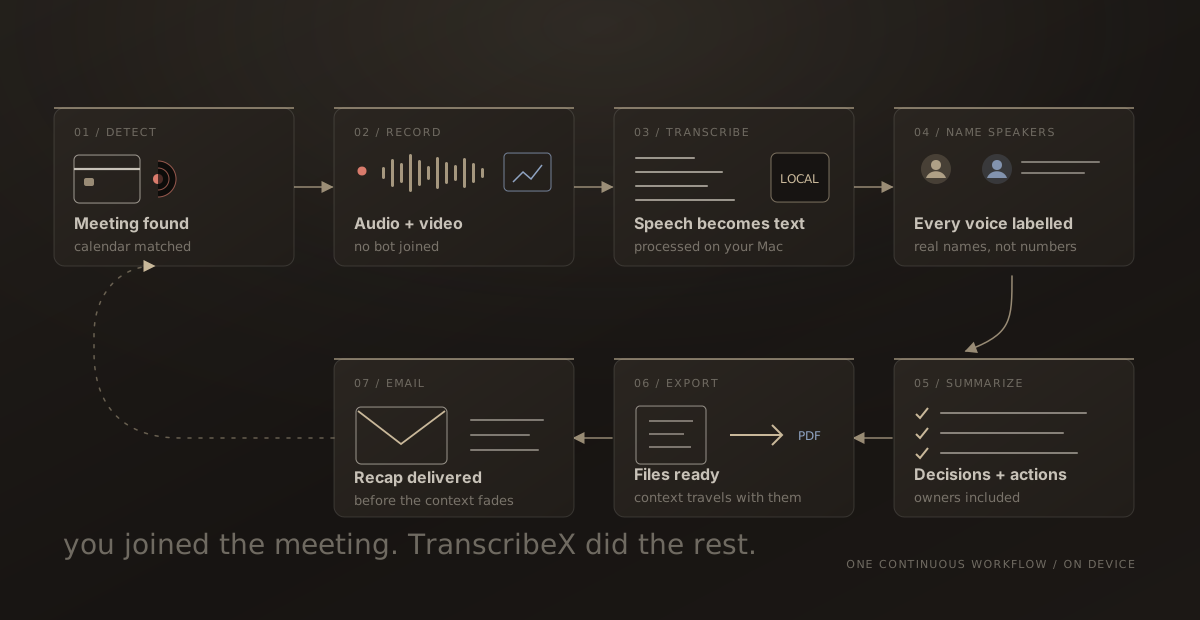
- TranscribeX detects the Teams call, captures the audio on your Mac and transcribes it there. Nothing joins the meeting, so there is no bot for the lobby to hold.
What Microsoft Teams meeting transcription requires
In a work or school meeting, live transcription can be started by the organizer, co-organizers and transcript initiators, and starting a recording starts transcription too. People from the same organization can start and view it. People from other organizations can only view it in real time, and anonymous users can’t start or stop it. Live transcription runs in the desktop app, and the admin has to enable it in the meeting policy. It supports 57 spoken-language variants. Translated live transcription needs Teams Premium.
Recording follows similar rules. The organizer and people from the same organization can record if they have a qualifying Microsoft 365 license and the admin allows it. Guests, people from other organizations and anonymous users can’t. Recordings and transcripts are stored in the cloud, in OneDrive or SharePoint, and appear in the meeting chat. Microsoft’s own advice for a guest who needs a recording is to ask someone in the organizer’s organization to record it and share it.
Teams for personal use is different: recording needs a Microsoft 365 Personal, Family or Premium subscription, and those recordings expire after 30 days.
Teams AI meeting notes and Copilot
Intelligent recap gives you AI notes, tasks, name mentions, a speaker timeline and chapters after the meeting. It needs a Microsoft 365 subscription that includes Teams plus a Teams Premium or Microsoft Copilot license, and transcription must be enabled in policy. Without a recording, the recap lacks the recording, speakers, topics and chapters. Copilot in Teams also needs its own license, and it can’t be asked about a meeting afterwards if the meeting wasn’t transcribed.
TranscribeX takes a simpler approach to AI notes. It downloads a small language model that runs inside the app, without an API key or a Microsoft license, and it writes key points, decisions and action items from a transcript that already has speaker names. You can also connect ChatGPT, Gemini, Ollama or another provider.
Why bot-based note takers struggle in Teams
Teams has a meeting policy for external bots. Its default setting marks detected bots and holds them in the lobby until someone explicitly admits them, whatever the other lobby settings are, and organizers get a reminder about the risk. Microsoft also suggests letting only organizers and co-organizers admit people from the lobby. That is reasonable for security, and it means a bot-based AI note taker for Teams may never get into the meeting. TranscribeX doesn’t knock, because it records from your Mac.
Teams vs TranscribeX for Teams transcription
| TranscribeX | Teams built-in | |
|---|---|---|
| Works when you are a guest or external participant | ✓ | ✗Can view, can’t start |
| License needed | TranscribeX Pro, $39 once | Qualifying Microsoft 365 license and admin policy |
| Where the audio is processed | On your Mac | Microsoft cloud |
| Where the transcript is saved | Your Mac | Organizer’s OneDrive or SharePoint |
| Languages | 100+ with Whisper | 57 spoken-language variants |
| Speaker names | ✓Diarization and Voice Profiles | ?Speaker timeline in intelligent recap |
| AI meeting notes | ✓Built-in local model, or your own provider | ?Intelligent recap with Teams Premium or Copilot |
| Participants are notified by Teams | ✗No, tell them yourself | ✓Recording and transcription notices |
Teams details from Microsoft Support and Microsoft Learn pages on live transcription, recording, intelligent recap, Copilot in Teams and managing external bots, checked October 2026. Licensing and policies vary by tenant, so check with your admin. Tell us at support@transcribex.io if anything here is out of date.
How to transcribe a Teams meeting on Mac with TranscribeX
- Install TranscribeX. Download it from this site or run
brew install --cask transcribex. Automatic meeting recording is part of Pro. - Grant the macOS permissions. Allow TranscribeX under System Settings › Privacy & Security › Screen & System Audio Recording, so it can hear the other participants, and allow Microphone access for your own voice.
- Turn on detection for Microsoft Teams. In the detection settings, enable Teams and choose audio only or audio and video. If you join Teams in a browser, Chrome, Safari and Brave are detected too. Pick a model and decide which after-meeting steps should run on their own.
- Join the call and let people know. Recording starts shortly after the meeting begins. When it ends, TranscribeX transcribes it on your Mac, names the speakers and can write and email the summary.
Run a short test call first with automatic email off, and check that both sides are audible. For text during the meeting, the live transcript window uses NVIDIA Nemotron streaming models and has an AI chat panel for catching up. If you have a Teams recording file on your Mac already, drag it into TranscribeX to transcribe it for free.
“TranscribeX has been great! I am on 20+ calls weekly and this tool has become invaluable for call transcripts, and without any subscription or sending my data off to the cloud! I've emailed support on a few occasions and Ethan has been extremely responsive, top notch support!”
TranscribeX also handles your Zoom and Google Meet calls the same way, so external meetings on other platforms end up in the same place. If you are weighing it against a cloud note taker, see the Otter comparison.
Teams transcription: FAQ
Why can’t I start transcription in a Teams meeting?
Usually because you are a guest or from another organization, your license doesn’t include it, or the admin hasn’t enabled transcription in your meeting policy. People from other organizations can view a live transcript but can’t start one.
Does Teams intelligent recap cost extra?
Yes. It needs a Teams Premium or Microsoft Copilot license in addition to a Microsoft 365 subscription that includes Teams.
Will TranscribeX be held in the Teams lobby?
No. It doesn’t join the meeting at all. It records the audio your Mac plays and your microphone hears. Teams shows no notice for it, so tell participants and get consent first.
Can I transcribe a Teams meeting as a guest?
Teams’ own tools don’t let guests start recording or transcription. TranscribeX captures the call from your Mac, so it works as a guest, but ask the organizer and the other participants before you record.