Whether you can record a Zoom meeting with Zoom itself depends on two things: whether you’re the host, and which plan the host pays for. If you’re a participant, the Record button usually isn’t yours to press.
Below are the four ways to record a Zoom call on a Mac, from Zoom’s own buttons to recording your Mac’s audio directly, plus how to get a transcript afterwards. Zoom details come from Zoom’s support pages, checked October 2026. I build TranscribeX, which is one of the options, and I’ll say where Zoom’s built-in tools are the better choice.
Quick answer
- You’re the host: click Record → Record on this Computer. Works on free and paid Zoom, in the Mac desktop app.
- You’re a participant: ask the host for permission to record to your computer.
- The host can’t or won’t allow it: record your Mac’s audio with another app, and tell everyone first.
- You want a transcript: Zoom’s automatic transcript needs a paid plan and cloud recording; otherwise transcribe the recording on your Mac.
Who can record a Zoom meeting
| Zoom feature | Who can start it | Plan |
|---|---|---|
| Local recording (to your Mac) | The host, or a participant the host allows | Free and paid; desktop app only |
| Cloud recording | Host and co-hosts | Paid (Pro, Business, Enterprise) |
| Audio transcript of a cloud recording | Created automatically after the cloud recording | Paid, with audio transcription turned on |
| AI Companion meeting summary | Host and co-hosts | Paid seat, or the $10/month AI Companion add-on |
From Zoom support articles on local recording, cloud recording, audio transcription and AI Companion, checked October 2026.
Zoom’s free Basic plan also limits group meetings to 40 minutes, so a free host’s recording can’t run longer than that.
Method 1: record a Zoom meeting on Mac as the host
- Start the meeting in the Zoom desktop app for Mac. Local recording doesn’t work in the web client or on iPhone and iPad.
- Click Record in the meeting toolbar (it may be under More).
- Choose Record on this Computer. Participants see a recording notice and are asked to consent.
- When the meeting ends, Zoom converts the recording and opens the folder. You get a video file and a separate audio file.
On a paid plan you can choose Record to the Cloud instead. The recording then lives in your Zoom web portal under Recordings, and if audio transcription is enabled, Zoom adds a transcript as a VTT file once processing finishes.
Method 2: record a Zoom meeting as a participant
By default only the host can record. As a participant you have two Zoom-approved routes:
- Ask for permission. The host opens Participants, hovers over your name and chooses to allow recording to your computer. You can then use Method 1.
- Ask to be made co-host, if the host is on a paid plan and wants you to manage cloud recording.
Some company accounts auto-allow internal participants to record, so it’s worth checking whether the Record button is already available before you ask.
Method 3: record your Mac’s audio directly
If the host can’t grant permission, for example because their company account blocks participant recording, you can record what your Mac plays and what your microphone hears. This doesn’t use Zoom’s recording at all, so it works whatever plan the host has. The options:
- macOS 27: press Shift-Command-5, start a screen recording, and turn on Include System Audio and your microphone under Options.
- Older macOS: a virtual audio driver such as BlackHole, or an app like Audio Hijack.
Step-by-step instructions for each are in how to record system audio on a Mac.
One important difference: when Zoom records, Zoom shows everyone a notice. When you record your Mac’s audio with another app, Zoom shows nothing. That makes telling people your job.
Method 4: record and transcribe Zoom meetings automatically
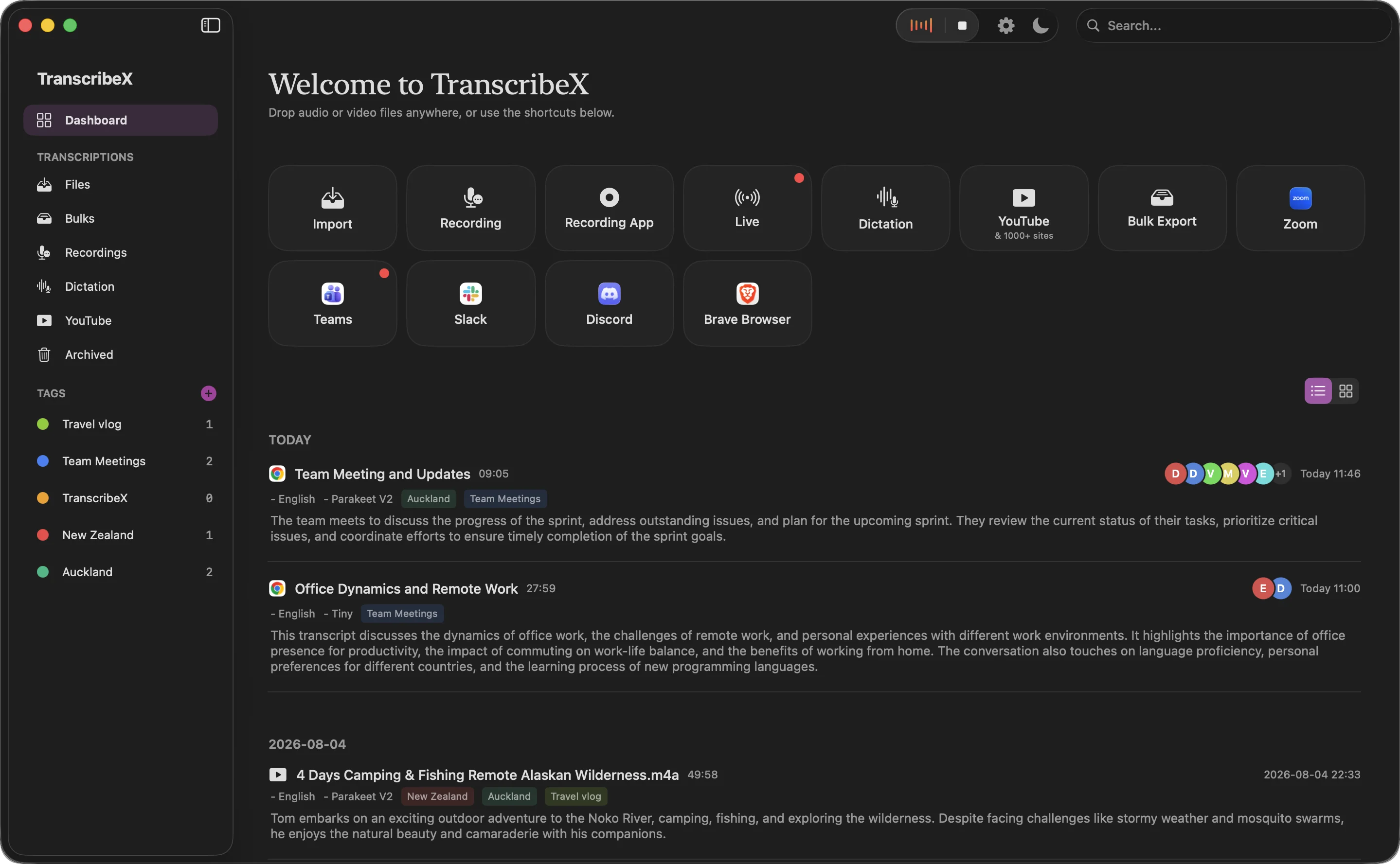
If you’re on Zoom calls every day, starting a recording by hand gets old, and you’ll eventually forget. TranscribeX Pro notices when a Zoom meeting starts and records its audio (and video, if you want) together with your microphone, with no bot in the participant list. When the call ends it transcribes on your Mac, labels the speakers, writes a summary and can email it to you.
It also works the same way in Teams, Google Meet, Slack, Discord and Webex, so you don’t need each platform’s paid recording tier. It costs $39 once.
“TranscribeX has been great! I am on 20+ calls weekly and this tool has become invaluable for call transcripts, and without any subscription or sending my data off to the cloud! I've emailed support on a few occasions and Ethan has been extremely responsive, top notch support!”
How to get a transcript of a Zoom meeting
- Zoom’s audio transcript: automatic, but needs a paid plan, cloud recording and the host to record. Supports 19 languages.
- Zoom AI Companion: writes a summary rather than a full transcript, and needs a paid seat or the add-on. The host starts it.
- Transcribe the recording yourself: drag the audio or video file from a local recording into a transcription app. TranscribeX’s free version does this on your Mac with no minute limit, using Whisper Tiny or Apple’s on-device model. Pro adds larger models and speaker labels.
The third route works for any recording, whoever made it, and the file never leaves your Mac. More on Zoom transcription.
When Zoom’s built-in recording is the better choice
- Everyone needs the recording. A cloud recording gives the whole team a shareable link.
- You need the gallery view and screen share exactly as Zoom shows them. Zoom’s recording layouts are hard to match.
- Your company requires the visible recording notice. Zoom’s consent prompt is a record that people were told.
Recording Zoom on Mac: FAQ
Can I record a Zoom meeting if I’m not the host?
With Zoom’s own recording, only if the host gives you permission to record to your computer or makes you co-host. Recording your Mac’s audio with another app works without host permission, but you should tell participants and get their consent first.
Does Zoom notify others when you record?
Yes, when you use Zoom’s recording, participants see a notice and are asked to consent. Zoom does not detect recordings made by other apps on your Mac, so in that case you need to tell people yourself.
Can you record on the free version of Zoom?
Yes. Local recording to your computer is available on free accounts in the Zoom desktop app. Cloud recording and automatic transcripts require a paid plan, and free group meetings are limited to 40 minutes.
Where do Zoom recordings go on a Mac?
Local recordings are saved to a Zoom folder on your Mac (by default in Documents), and Zoom opens the folder when conversion finishes. Cloud recordings are in the Zoom web portal under Recordings.
How do I get a Zoom transcript without cloud recording?
Record the meeting locally, then transcribe the audio file with a transcription app. TranscribeX’s free version transcribes it on your Mac with no upload and no minute limit.