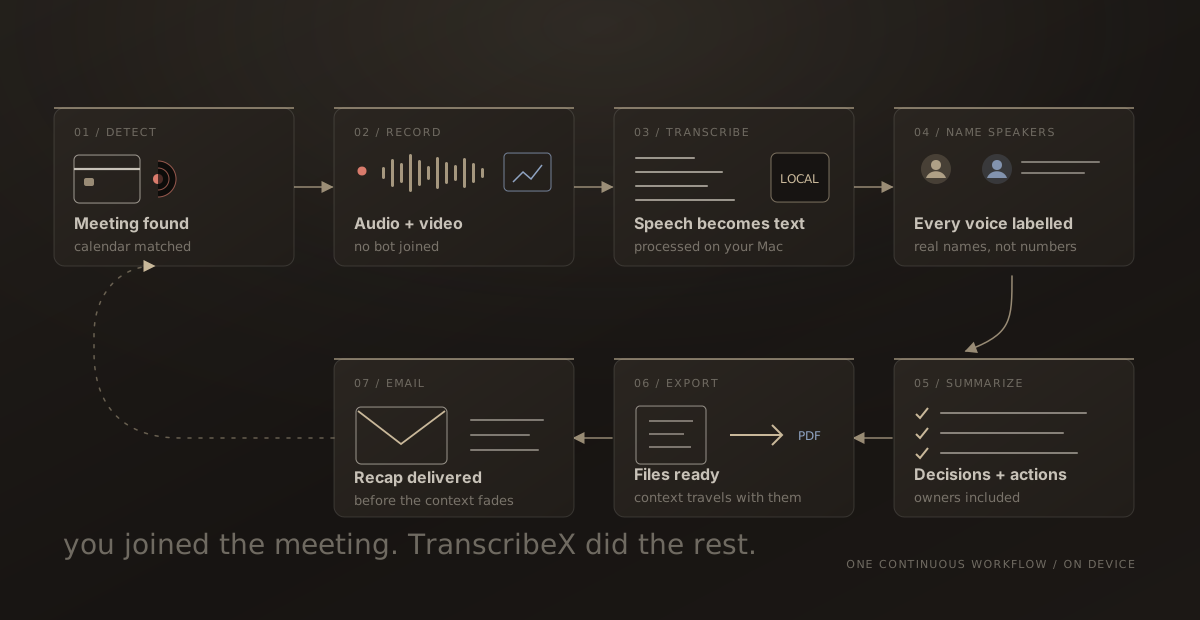
The easiest meeting to lose is the one you remembered to join but forgot to record. Even when you do press the button, the work is only starting: name the file, transcribe it, identify the speakers, pull out decisions, export the notes, and send them to everyone who needs them.
TranscribeX treats those steps as one continuous cycle. It detects the call, records its audio and video without adding a bot, matches it to your calendar, transcribes it locally, labels the speakers, builds a report, exports the result, and can email the recap when the meeting ends. You attend the meeting. The Mac handles the paperwork.
What is automatic meeting recording?
Automatic meeting recording is a trigger-based workflow. The recorder watches for the signals that a call is active in an application such as Zoom, Microsoft Teams, Google Meet, Slack, or Discord. When those signals appear, it begins capture according to your settings. When the call finishes, it closes the recording and starts the post-meeting work.
That distinction matters. A calendar reminder only knows that a meeting was scheduled. It cannot tell whether you joined late, the event was cancelled, or the conversation ran long. Detecting the active meeting lets the recording follow the conversation that actually happened.
TranscribeX performs that detection on the Mac and captures system audio directly. There is no meeting bot to admit, no unfamiliar participant for the host to question, and no cloud recorder that disappears because somebody denied it access.
Nine stages, one uninterrupted meeting workflow
The pipeline is easiest to understand as a sequence. Capture happens while the meeting is live. Processing and delivery happen after it ends. The person in the meeting does not have to shuttle files between separate services.
1. Detect the call that is actually happening
TranscribeX recognizes meetings in supported desktop apps and browsers, and you can add custom applications such as a preferred browser or calling app. Detection starts from app activity rather than the scheduled start time. A short start delay helps avoid capturing the clicks and notification sounds around the moment a call opens.
2. Give the recording its calendar context
A raw audio file knows nothing about why it exists. TranscribeX can match the call with an event from your selected Mac calendars, use the event title as the recording name, and carry its date, participants, and details into the later export. If automatic matching picks the wrong event, you can link the correct one manually.
3. Capture the part people usually forget
The app records the meeting audio on your Mac and can also capture video. That means slides, screen shares, and product demos can stay beside the conversation that explained them. The capture is bot-free: TranscribeX does not join the meeting or announce itself as another attendee.
Bot-free does not mean consent-free. Recording laws and company policies vary, and some calls require everyone to be notified. TranscribeX keeps the capture private, but the decision to record and the responsibility to communicate it remain yours.
4. Preserve the source before doing anything clever
When the meeting ends, the recording is saved as the source of truth. The later transcript and report are derived artifacts. Keeping that boundary is useful because speech recognition can mishear a name, diarization can confuse similar voices, and a summary necessarily leaves details out. You can always return to what was actually said.
5. Turn the recording into searchable text locally
Automatic transcription begins after the recording ends. You can choose among local engines including Whisper, NVIDIA Parakeet, Qwen3 ASR, and Apple’s on-device speech recognition. The right choice depends on the language, hardware, and accuracy you need, but the important architectural point stays the same: core transcription can run on your Mac without uploading the meeting audio.
6. Work out who said what
A meeting transcript becomes far more useful once it is dialogue rather than an anonymous block of text. TranscribeX can run speaker diarization after transcription, group each segment by voice, and match recurring speakers to local Voice Profiles. The result can use names instead of “Speaker 1” and “Speaker 2.”
7. Build a report from attributed speech
The AI report can turn the speaker-labelled transcript into key points, decisions, and action items. Your own notes can be included too. Because speaker names are part of the context, the report can preserve who proposed an idea or accepted an action instead of flattening the meeting into a list of unattributed bullets.
You decide where this step runs. A downloaded local language model keeps the summary on the Mac. You can also connect an online provider when its model quality or context window is more important for a particular meeting.
8. Export while the context is still attached
TranscribeX can automatically export the meeting in the formats your workflow needs. The calendar details and speaker labels travel with the output, rather than leaving you with a file called something like Recording 14.txt. If you edit the transcript later, the exported files can be updated to reflect those corrections.
9. Deliver the recap before it becomes a chore
The final stage can email the AI summary and full transcript after the meeting wraps up. If the conversation needs review before distribution, leave automatic email off and send the same material manually with one click. Automation should remove routine work, not remove judgment.
Why the full meeting cycle runs on the Mac
Local processing is not just a privacy setting. It changes the shape of the workflow. The recording does not need to finish uploading before transcription can begin, core processing does not depend on an internet connection, and there is no per-minute cloud meter deciding which meetings are worth keeping.
No bot dependency
The workflow does not depend on a virtual participant being invited, admitted, and kept in the call.
Source stays available
The original audio or video remains beside the transcript, summary, and exports for later verification.
Private core processing
Recording, transcription, diarization, and local AI analysis can happen without sending the conversation to a transcription service.
One workflow, fewer handoffs
Calendar context, speaker names, corrections, and meeting metadata survive from capture through delivery.
Automation removes clicks, not trade-offs
A fully automatic cycle is useful precisely because it makes choices in advance. Those choices deserve a few minutes of setup.
- Audio or video: video preserves demos and slides, but it creates larger files and captures more sensitive visual information.
- Live or post-meeting transcription: live text is useful during a call, while post-meeting processing can analyze the finished recording as a whole.
- Local or online AI: a local model keeps the report private and works offline; an online model may be preferable when you want a specific provider’s capabilities.
- Automatic or reviewed email: immediate delivery saves a task, while manual sending gives you a chance to correct names and remove material that should not be shared.
- Automatic detection or manual control: detection prevents forgotten recordings, but sensitive meetings may be better handled with explicit, case-by-case capture.
The best default is not “turn on everything.” It is the smallest automatic workflow you trust. Start with detection, local recording, and transcription. Add diarization, reports, exports, and email as you decide how each should behave.
Set up the cycle once
Open TranscribeX meeting settings, choose the applications you use for calls, select your recording and transcription options, and grant the macOS permissions needed to capture audio or video. Then choose the calendars that may name meetings and decide which post-processing steps should run automatically.
For a first test, use a short call and keep automatic email disabled. Confirm that detection starts at the right moment, both sides of the conversation are audible, the calendar event matches, and your chosen model handles the language well. Once the result looks right, enable the rest of the cycle.
Frequently asked questions
Which meeting apps can TranscribeX detect?
TranscribeX supports meetings in Zoom, Microsoft Teams, Google Meet, Slack, Discord, and other macOS applications. Custom app detection lets you include additional browsers and calling apps.
Does TranscribeX join the meeting as a bot?
No. It captures the meeting from your Mac, so no recording assistant appears in the participant list. You still need to follow applicable consent laws and workplace policies.
Can automatic meeting transcription work offline?
Core transcription, speaker diarization, and AI analysis can run locally after the required models are downloaded. Features that send email or use an online AI provider require an internet connection.
Can it record the screen as well as the audio?
Yes. Meeting recording can include video so presentations, screen shares, and demos are preserved with the audio. You can choose audio-only capture when smaller files or reduced visual exposure matter more.
What happens after the meeting ends?
Depending on your settings, TranscribeX saves the recording, transcribes it, labels speakers, creates an AI report, exports the result, archives the job, and emails the summary and transcript.
Join the meeting. Let the cycle finish itself.
Download TranscribeX for Mac and test the complete automatic meeting workflow on your next call.
Feature behaviour was checked against the TranscribeX product page and release history on September 20, 2026. Available options depend on your selected models, meeting application, macOS permissions, and automation settings.